To start using Claude:
- Sign up at claude.ai or in the desktop or mobile app.
- Start a chat and describe your task the way you’d brief a colleague: who it’s for, what good looks like, and the material to use.
- Upload the document, spreadsheet or notes you want it to work with, and correct it in the same thread instead of starting over.
Most beginners only need four things: good prompts, file uploads, Projects for recurring work, and knowing which model and plan they’re on. This guide walks through setup and seven real tasks step by step, then covers usage limits, privacy settings and the mistakes that waste your first week.
Key terms used in this guide: context window and hallucination.
Quick start: what you want to do and where to find it
| What you want to do | Where in Claude | Plan needed |
|---|---|---|
| Ask questions, draft, edit | Message box on web, desktop, iOS and Android | Free |
| Upload a PDF, spreadsheet or notes | Attach button in the message box | Free, within usage limits |
| Look something up online | Web search in the message box | Free |
| Build a small tool or page | Ask in chat; it opens as an Artifact | Free |
| Keep a recurring job in one place | Projects in the sidebar | Free, up to five Projects |
| Save your preferences and context | Memory and preferences in Settings | Free |
| Connect other apps and tools | Connectors in Settings | Free |
| Run a multi-source research report | Research option | Pro or higher |
| Switch to the Opus model | Model picker | Paid plans |
Set up Claude in 5 minutes
Open claude.ai in a browser, create an account, and you are in a chat. That is enough to begin. The desktop app is worth installing if you use Claude most days, because it lives outside your browser tabs and supports desktop extensions. The iOS and Android apps give you the same chat plus voice mode for moments when typing is inconvenient. All three use one account, and your activity draws from one shared usage allowance.
Take a minute to look around before you type. The sidebar holds your chat history, Projects and settings. The message box holds the attach button, the model picker and the tool options such as web search. Knowing where those sit makes every task below faster.
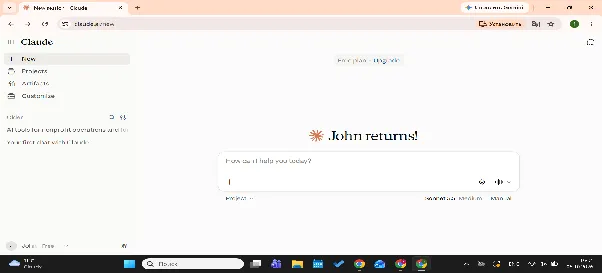
Start on the free plan. It covers chat, web search, file creation, memory, connectors and Artifacts, so you can try everything in this guide except Research. Upgrade only when limits get in your way. Our Claude pricing guide compares the current plans, and Anthropic’s pricing page is the final word on what each one includes.
Your first good prompt
Claude does better work when you treat a prompt as a brief. A one-line request leaves it guessing about audience, length and tone, so it falls back on safe, generic answers. Copy this template and fill in what matters for the task. You rarely need every field.
Act as [role]. Your task: [task]. The audience is [audience]. Use this material: [material]. Format the answer as [format]. Constraints: [constraints]. A good result will [what good looks like]Here is the difference in practice.
Before: Write an email about the project delay.
After: Act as a project manager writing to a client. Write a short email explaining that the website launch moves from March 3 to March 17 because the payment integration needs two more weeks of testing. The client is polite but anxious about cost. Keep it under 150 words, say plainly what changed, confirm that the budget is unchanged, and end with one clear next step. The tone should be calm and direct, not apologetic.
Notice what the longer version leaves out: a lecture on email etiquette or a style guide. It names the situation, the reader and the limits, then leaves the writing to Claude. If the first draft misses, say what is wrong in one sentence, such as “too formal for a client I know well”, and ask for a revision. Specific feedback beats “try again”, and it costs far less than opening a new chat.
The second version takes thirty seconds longer to write and saves several rounds of fixing. For more patterns you can reuse, our guide to writing better AI prompts goes deeper.
Settings worth changing on day one
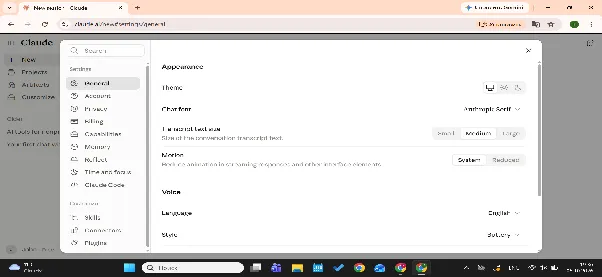
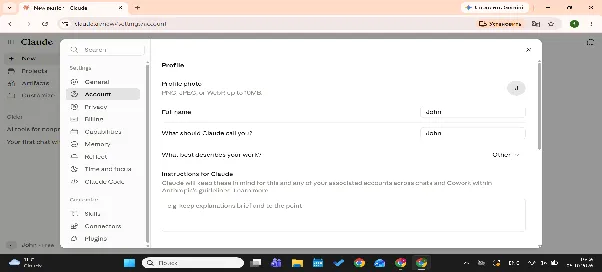
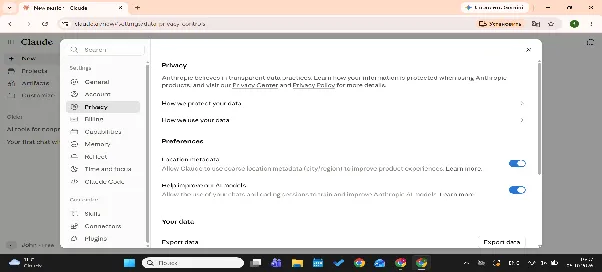
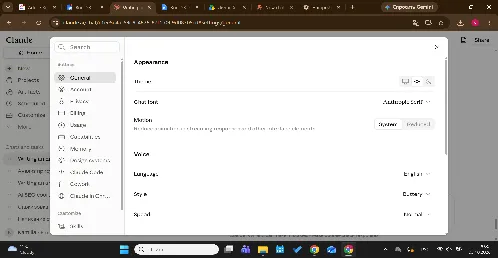
Three settings deserve a minute. Add a short note about your role and writing preferences to your user preferences, so you stop repeating them in every chat. Look at memory and decide whether you want it on for your account. Then open the privacy settings and see how the model-improvement option is set; the privacy section below explains why.
Seven real tasks, step by step
These seven tasks show how to use Claude on the work most people actually bring to it. Use your own non-confidential files, or sample ones with no real names or figures.
Summarize a long PDF
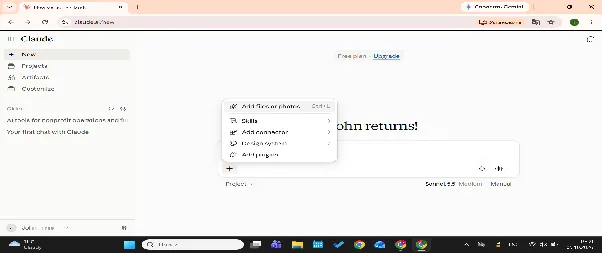
- Click the attach button in the message box and add the PDF.
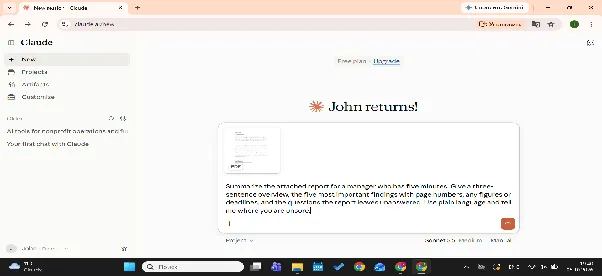
- Paste the prompt below and adjust the reader and length.
Summarize the attached report for a manager who has five minutes. Give a three-sentence overview, the five most important findings with page numbers, any figures or deadlines, and the questions the report leaves unanswered. Use plain language and tell me where you are unsure- Ask a follow-up such as “Which page supports the second finding”, then open that page and check.
Draft and refine an email
- Describe the situation and paste the prompt.
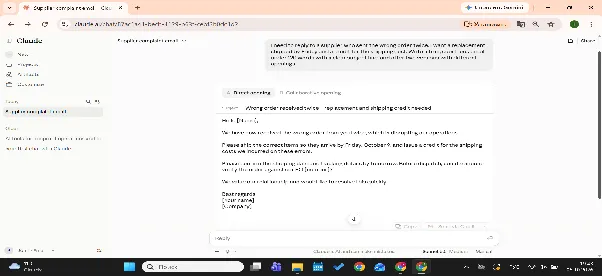
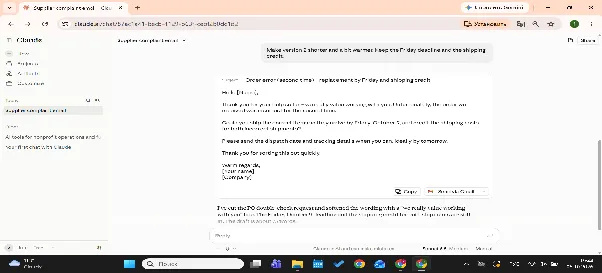
I need to reply to a supplier who sent the wrong order twice. I want a replacement shipped by Friday and a credit for the shipping cost. Write a firm, courteous email under 120 words with a clear subject line, and offer two versions with different openings- Read the draft, then change one thing at a time: “shorter”, “warmer”, “firmer on the deadline”.
- Stay in the same thread so Claude keeps what already works.
Analyze a spreadsheet
- Attach an .xlsx or .csv file. Sample data is fine.
- Ask Claude to describe what it sees before it analyzes anything.
Look at the attached sales spreadsheet. First describe the columns and flag anything that looks wrong, such as blanks, duplicates or odd dates. Then show monthly revenue by region, name the three biggest changes, and write a one-paragraph summary for a non-technical reader. Tell me which calculations you ran- Spot-check two or three results against the original cells.
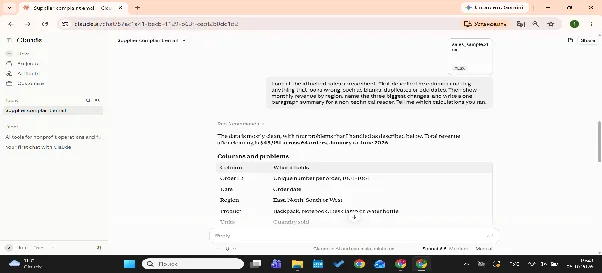
Because Claude can create and edit files with code execution, you can also ask for a cleaned copy of the data or a chart as a file.
Plan a project
- State the goal, the deadline and who is involved.
- Ask for a plan, then ask Claude to challenge it: “What is most likely to slip?”
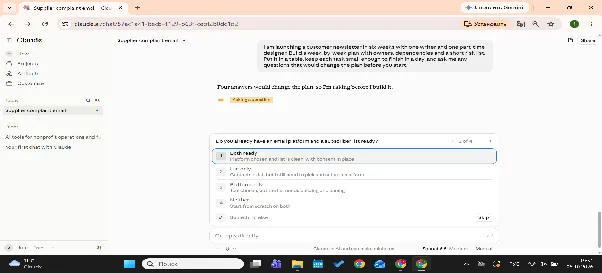
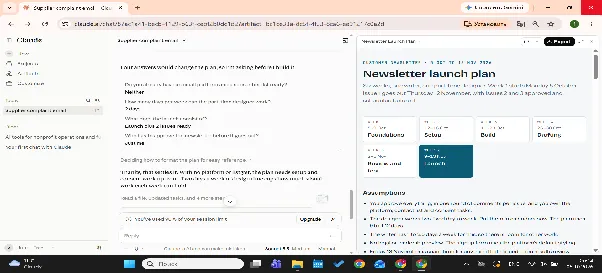
I am launching a customer newsletter in six weeks with one writer and one part-time designer. Build a week-by-week plan with owners, dependencies and a short risk list. Put it on a table, keep each task small enough to finish in a day, and ask me any questions that would change the plan before you start- If you will return to this project every week, move it into a Project so the brief and files stay together.
Write a report from notes
- Paste your raw notes after removing names and sensitive details.
- Ask for the structure you need.
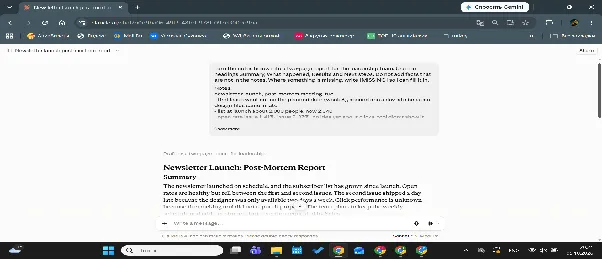
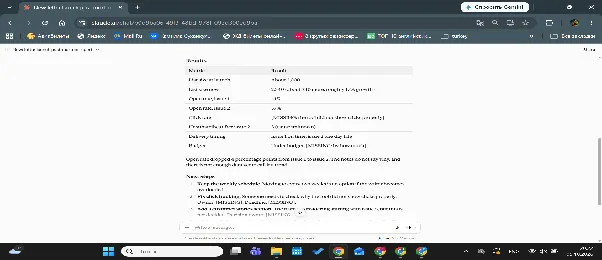
Turn the notes below into a two-page report for the leadership team. Use the headings Summary, What happened, Results and Next steps. Do not add facts that are not in the notes. Where something is missing, write [MISSING] so I can fill it in. Notes: [paste notes here]- Fill in every gap Claude marks rather than letting it guess.
Learn a new topic
- Tell Claude your starting level.
- Ask for an explanation with one everyday example.
Teach me how inflation works. I have no economics background. Explain it in plain language with one everyday example, then give me five questions to test myself and wait for my answers before you share yours. Correct me directly and explain why- Ask it to quiz you, and answer before it reveals its own answers.
For anything that depends on current facts, turn on web search so the explanation is not limited to what Claude learned in training.

Build a simple interactive artifact
- Describe the tool you want in plain language.
Build a simple monthly budget calculator I can use in the browser. Include fields for income and six expense categories, show the remaining amount, and turn it red when it goes negative. Keep the design clean and add a reset button- Claude builds it and shows it in a panel beside the chat. Try it out.
- Ask for changes the same way you would ask a designer: “make the totals larger”.
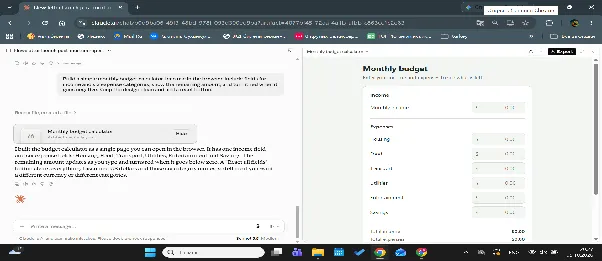
Artifacts can grow from a calculator into a small app. Our Claude Artifacts guide covers what they can and cannot do.
Check the work before you use it
Claude is fast, but it is not a source of record. Skim every output for numbers, names and claims that sound too neat. Ask where in your file a figure came from, then confirm it in the original. For a summary, read one section of the source yourself. For a spreadsheet, recalculate one total by hand. Ten minutes of checking in your first week teaches you where Claude is reliable for your kind of work and where it needs a second look.
Features worth learning next
- Projects. A Project keeps instructions, files and chats for one piece of ongoing work in one place, so you stop re-explaining the background. Free accounts can create up to five. Our guide to Claude Projects shows how to set one up.
- Artifacts. Covered in the last task. Anything Claude builds for you, from a calculator to a document layout, opens beside the chat and changes when you ask.
- Web search and Research. Web search lets Claude check current information and works on every plan. Research goes further and pulls many sources into a longer report, and it needs Pro or a higher plan.
- Connectors. Connectors link Claude to other apps and tools so it can work with your data there. Add only what you need, and read what each connector can access before you approve it.
- Memory and styles. Memory carries useful details from one conversation to the next, and preferences hold standing instructions. Styles change how Claude writes, for example more concise or more formal. Check your Settings screen to see which of these your account shows.
- Skills. Skills are reusable instructions that Claude loads when a task calls for them, such as your preferred report format. Our guide to Claude Skills walks through them.
Choosing a model in the app
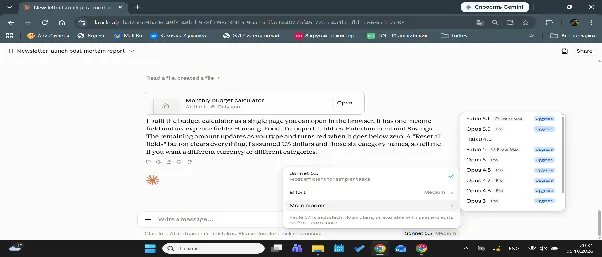
The model picker sits in the message box and lists the models your plan includes. On the free plan that means the Sonnet and Haiku families, paid plans add Opus. Anthropic also offers Fable, which has its own access rules on the official pricing page. Version numbers change often, so read the labels in your own picker instead of trusting an old article. As a starting point, use the default model for everyday work, a smaller one for quick and simple requests, and the strongest model your plan offers for hard analysis or long documents. You can also switch models partway through a conversation, so a shallow answer is cheap to retry on a stronger model before you rewrite the prompt.
Usage limits: why you hit them and how to stretch them
Every plan has usage limits that reset on a rolling five-hour window, and paid plans add weekly limits on top. Anthropic does not publish a fixed message count, because the allowance depends on how long your conversations are, which model you pick and which features you use. Research and long file analysis use more of it than a short question does, so save them for jobs that need them. Activity on the web, desktop and mobile apps, and in Claude Code, draws from the same pool, and paid plans show your remaining allowance in Settings under Usage. When you reach a limit you can wait for the reset, move to a higher plan or, on paid plans, turn on usage credits.
To make the allowance last, start a fresh chat for each new topic, because a long thread carries its whole history into every reply. Attach a large file once and keep working in that chat. Match the model to the task, and combine small requests into one clear brief. Our Claude usage limits guide explains the mechanics in more detail.
Privacy and what not to paste
On Free, Pro and Max, Anthropic’s pricing page lists model training as opt-out. A setting in your privacy options controls whether your chats help improve Claude, so check it before you paste anything sensitive. According to Anthropic’s Help Center, incognito chats are not used to improve Claude even when that setting is on, although conversations flagged by its safety classifiers may still be used for safety work. Team and Enterprise plans do not train on your content by default.
A personal account also sits outside your employer’s controls. Do not paste confidential work or client data into a personal account without company approval. Our guide on whether Claude AI is safe covers data handling in more depth.
Before you paste
- Remove names, emails, phone numbers and account numbers.
- Replace client and company names with placeholders.
- Skip contracts, health records, passwords and anything under NDA.
- Check the model-improvement setting, and use an incognito chat for sensitive drafts.
- Ask your employer whether a company-approved account exists.
Six common beginner mistakes
- Writing vague prompts. “Write something about our product” gets a generic answer. Add the audience, the format and an example of good.
- Starting over instead of correcting. Fix the draft in the same thread: “keep paragraphs one and three, rewrite two”. Claude keeps the context, and you keep the parts that worked.
- Trusting figures without checking. Claude can state a wrong number or page reference with complete confidence. Verify anything you will publish or send.
- Pasting sensitive material into a personal account. Use the checklist above, and get approval for anything that belongs to your employer or a client.
- Watching instead of doing. A Claude AI tutorial feels productive, but the habit only forms when you run a real task of your own.
- Keeping one endless chat. Long threads burn through your allowance and blur the answers. Open a new chat per topic, and use a Project for work that continues.
Troubleshooting common issues
- The answer is too generic, too long or too short. Claude filled the gaps in your brief with safe guesses. Say what is wrong in one sentence and add the missing detail: the audience, the length, the format. “Cut this to 150 words and lead with the deadline” works better than asking it to try again.
- Claude ignores an instruction from earlier in the chat. In a long thread, details from the start lose weight. Repeat the instruction in your next message. If it keeps happening, start a new chat with a short summary of where you got to, or move the standing rules into your preferences or a Project.
- A file will not upload, or only part of it is read. Check that the format is a common one, such as PDF, .docx, .xlsx or .csv. If a large document is only partly picked up, split it into sections and upload them one at a time. For scanned pages, ask Claude what it can actually see before you rely on the summary.
- You hit a usage limit halfway through a task. Wait for the five-hour window to reset, or finish the simple parts with a smaller model. Next time, give Claude one clear brief instead of a string of small requests.
- The answer contains a wrong fact or an invented source. Ask where the claim comes from, turn on web search for anything current, and confirm the figure in the original document. If Claude cannot point to a source, treat the claim as unverified.
- The reply stops in the middle. Ask Claude to continue from the last sentence. If it happens often, ask for the answer in two parts.
A 7-day practice plan
Treat this as a Claude tutorial you finish in a week, at about twenty minutes a day.
| Day | Do this | You will have |
|---|---|---|
| Day 1 | Set up, add preferences, write one brief with the template | A working account and a reusable template |
| Day 2 | Summarize a PDF you actually need to read | A summary you checked against the source |
| Day 3 | Draft and refine a real email | A message ready to send |
| Day 4 | Analyze a spreadsheet of sample data | Three findings and a chart |
| Day 5 | Plan a project and turn notes into a report | A plan and a first-draft report |
| Day 6 | Learn a topic, then build an artifact | A quiz score and a small tool |
| Day 7 | Create a Project for the work you repeat most | A home for your next month of tasks |
After the week, choose a direction. Cowork, which Anthropic is rolling into the main Claude app for Pro and Max first, handles multi-step work with your files; see our Claude Cowork guide. If you write software, start with the Claude Code guide.
Turn a first week into a habit
Your first week with Claude is about habits. A structured program turns them into skills you use every day. Claude is part of Coursiv’s course catalog, and if you want a guided path instead of working it out alone, start with the 28-Day AI Certificate Program. You finish with a certificate of completion, and the AI Certificate Program page has the details.